Claude Routines: 6 Workflows I Put on Autopilot (With the Prompts)
Claude Routines run on Anthropic's servers without keeping your machine on. The 3 trigger types, the limits, and 6 concrete prompts to copy.
Anthropic shipped Routines in Claude Code on April 14, 2026, as a research preview. The announcement was quiet, but the shift matters for anyone automating repetitive tasks.
The promise: configure a task once, and it runs on its own, even with your laptop closed, on Anthropic's servers.
This guide covers how it actually works, the three trigger types, the limits you need to know, and six workflows with their full prompts.
What Routines Are (and How They Differ From a Cron Job)
A Routine is a package that contains three elements: a prompt, one or more repositories (optional depending on the use case), and connectors (MCP, Notion, Gmail, Stripe...).
When the Routine fires, Claude Code runs on Anthropic's cloud infrastructure, with access to all configured connectors, and produces a result: a report, a draft, an action in an external tool.
The difference with a cron job or GitHub Actions: those tools run static scripts. A Routine runs a prompt: Claude decides what to do based on the context it finds. If your lead list is empty, it doesn't generate useless emails. If the swell is flat, it doesn't ping you. This is contextual automation, not scripting.
Important: Routines run on Anthropic's servers and clone the repositories you configure. They don't have access to your local filesystem. If your workflow depends on local files, Desktop Scheduled Tasks (a separate feature) are more appropriate.
The Three Trigger Types
Scheduled
The most accessible. You set a frequency (hourly, nightly, weekly) and the Routine runs automatically. It's the equivalent of a cron job, but with an AI model instead of a script.
Interface: claude.ai/code → Routines → New → Trigger "Scheduled"
API
Each Routine gets a unique HTTP endpoint with an authentication token. You send a POST from any tool (Datadog, your CI/CD, a Make or n8n webhook) and the Routine fires with the message content as context.
curl -X POST https://api.anthropic.com/v1/claude_code/routines/trig_01ABCDEF.../fire \
  -H "Authorization: Bearer sk-ant-oat01-xxxxx" \
  -H "anthropic-beta: experimental-cc-routine-2026-04-01" \
  -H "anthropic-version: 2023-06-01" \
  -H "Content-Type: application/json" \
  -d '{"text": "Sentry alert SEN-4521 in prod. Service: auth-api. Stack: NullPointerException line 142."}'
Typical use cases: post-deployment (automatic verification), ops alert triage, integration into existing pipelines.
GitHub Webhook
The Routine subscribes to events from a GitHub repository: opened pull requests, pushes, new issues, CI failures. Claude opens one session per PR and follows the evolution (comments, CI failures) continuously.
Supported events: pull request, push, issue, check run, workflow run, discussion, release, merge queue.
Note: during the research preview, GitHub webhooks are subject to hourly caps per Routine and per account. Events beyond the cap are dropped until the next window.
Combining Triggers
A single Routine can have multiple triggers: scheduled AND API, for example. Useful for a Routine that runs nightly but that you can also fire manually during an incident.
How to Configure a Routine
Two entry points:
- claude.ai/code → Routines section: graphical interface, recommended to start
/schedulecommand in the CLI: for workflows that live in an existing project
In both cases, you fill in:
- The prompt (the most important part, see next section)
- The repositories to clone if your task reads code
- The MCP connectors the Routine can use
- The trigger (scheduled/API/GitHub)
Writing a Good Routine Prompt
A Routine's prompt must be self-contained. Claude has no prior conversation context. It needs to understand exactly what to do, what to check, and how to format the result.
Structure to follow:
[Data source]: where to find the information (Notion page X, Stripe database, etc.)
[Condition]: when to act, when not to act
[Action]: what Claude should produce (report, email, notification)
[Format/destination]: where to put the result
Limits to Know
Routines in research preview have daily caps:
| Plan | Routines / day |
|---|---|
| Pro | 5 |
| Max | 15 |
| Team / Enterprise | 25 |
Routines beyond the cap consume additional usage credits. They count as standard Claude Code sessions.
The feature is in research preview: the /fire API runs under the experimental-cc-routine-2026-04-01 header. Request formats and limits may change before official release.
6 Workflows With Their Prompts
Routine #1 · Competitor Radar at 7am
Trigger: Scheduled, every morning at 7:00am
Connectors: Linkup, Notion
Prompt:
Scan content published by [competitor-1], [competitor-2] and [competitor-3]
on LinkedIn and on the web in the last 24 hours.

For each piece of content found: title, platform, estimated engagement count,
2-line summary, main signal (new product, price change, campaign, etc.).

Sort by relevance, descending. Ignore content below 50 engagements.

Create a new entry in the Notion page "Competitor Radar" with today's date
as the title and the structured report as body. Do not modify previous entries.
Result: I start the day with an up-to-date radar, without opening a single tab.
Setup time: 8 minutes
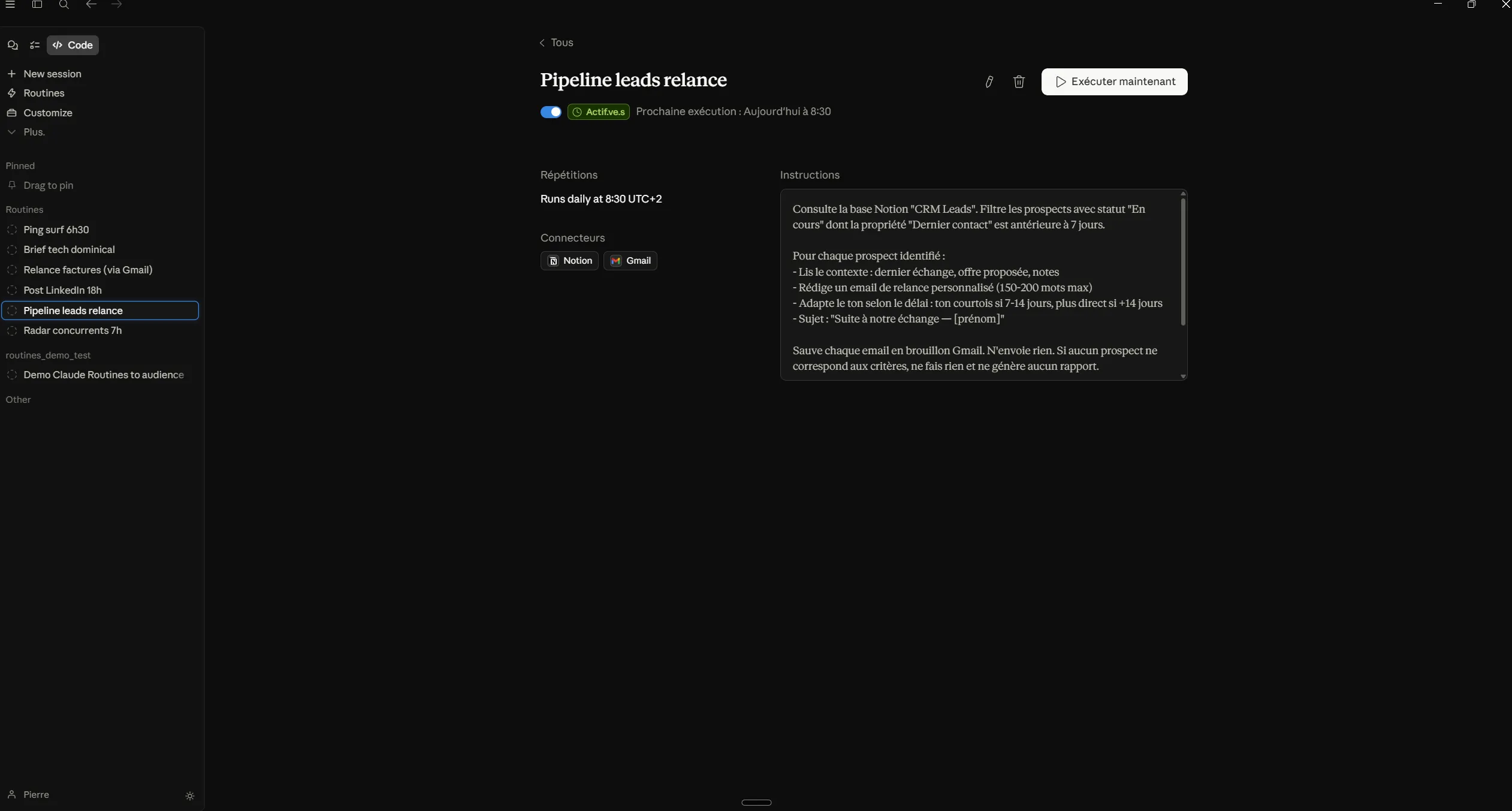
Routine #2 · Lead Pipeline That Follows Up on Its Own
Trigger: Scheduled, every morning at 8:30am
Connectors: Notion, Gmail
Prompt:
Check the Notion database "CRM Leads". Filter prospects with status
"In progress" whose "Last contact" property is older than 7 days.

For each identified prospect:
- Read the context: last exchange, proposed offer, notes
- Write a personalized follow-up email (150-200 words max)
- Adapt the tone based on delay: courteous if 7-14 days, more direct if 14+ days
- Subject: "Following up on our conversation, [first name]"

Save each email as a Gmail draft. Don't send anything. If no prospect matches
the criteria, do nothing and generate no report.
Result: never again a cold lead because I forgot to follow up.
Setup time: 12 minutes
Routine #3 · LinkedIn Post Generated While I'm at Dinner
Trigger: Scheduled, every evening at 6:00pm
Connectors: GitHub, Notion, LinkedIn (drafts)
Prompt:
Check my git log from the last 24 hours (main repo), Notion pages modified
today, and notes tagged "to share" in my Obsidian vault.

Identify the most interesting topic to share with an audience of AI builders
and developers. Priority to concrete learnings, instructive mistakes, or
build decisions.

Write 2 LinkedIn post variants:
- Variant A: short format, under 800 characters, one direct idea
- Variant B: storytelling format, 1200-1500 characters, with structure
  (hook / development / takeaway)

Tone: direct, first person, no corporate jargon.
BANNED: "Game changer", "I decided to share", empty intro sentences.

Drop both variants in Notion "Posts > To review" with today's date.
Don't publish anything directly.
Result: a ready draft every evening, I approve it in 30 seconds the next morning.
Setup time: 10 minutes
Routine #4 · Stripe Invoice Follow-Up
Trigger: Scheduled, every morning at 9:00am
Connectors: Stripe, Gmail, Notion
Prompt:
Check Stripe invoices with status "open". For each invoice:
calculate the number of days elapsed since the issue date.

Follow-up rules:
- D+7: first reminder email, courteous tone ("Just a gentle reminder...")
- D+15: follow-up with explicit invoice number and amount, neutral tone
- D+30: formal email mentioning payment delay, request confirmation
  within 48h

Never contact the same client twice on the same day.
Personalize with the contact's first name if available in Stripe.

Don't send emails directly: save them as Gmail drafts with
[FOLLOWUP-D+X] at the beginning of the subject line.

Log each action in Notion "Invoice Tracking": client, amount,
delay, action taken, date.
Result: cash comes in without me having to write an uncomfortable email.
Setup time: 15 minutes
Routine #5 · Sunday Tech Brief
Trigger: Scheduled, every Sunday at 8:00pm
Connectors: Linkup, Notion
Prompt:
Fetch tech content from the past week:
- Top HackerNews stories (score >150)
- Posts from @anthropic, @OpenAI, @karpathy on X
- Articles published on RSS feeds: The Pragmatic Engineer, Simon Willison,
  Lenny's Newsletter

Select the 10 most relevant signals for a solo AI builder (new models,
practical tools, API changes, experience reports).

For each signal: title, source, link, 3-line summary, and one sentence
on why it matters for a builder.

Sort into 3 categories: "Urgent" (test this week), "Watch",
"Background noise".

Drop the brief in Notion "Research > Week [week number]". One entry
per week, no accumulation.
Result: I start every Monday briefed, without spending my Sunday reading threads.
Setup time: 6 minutes
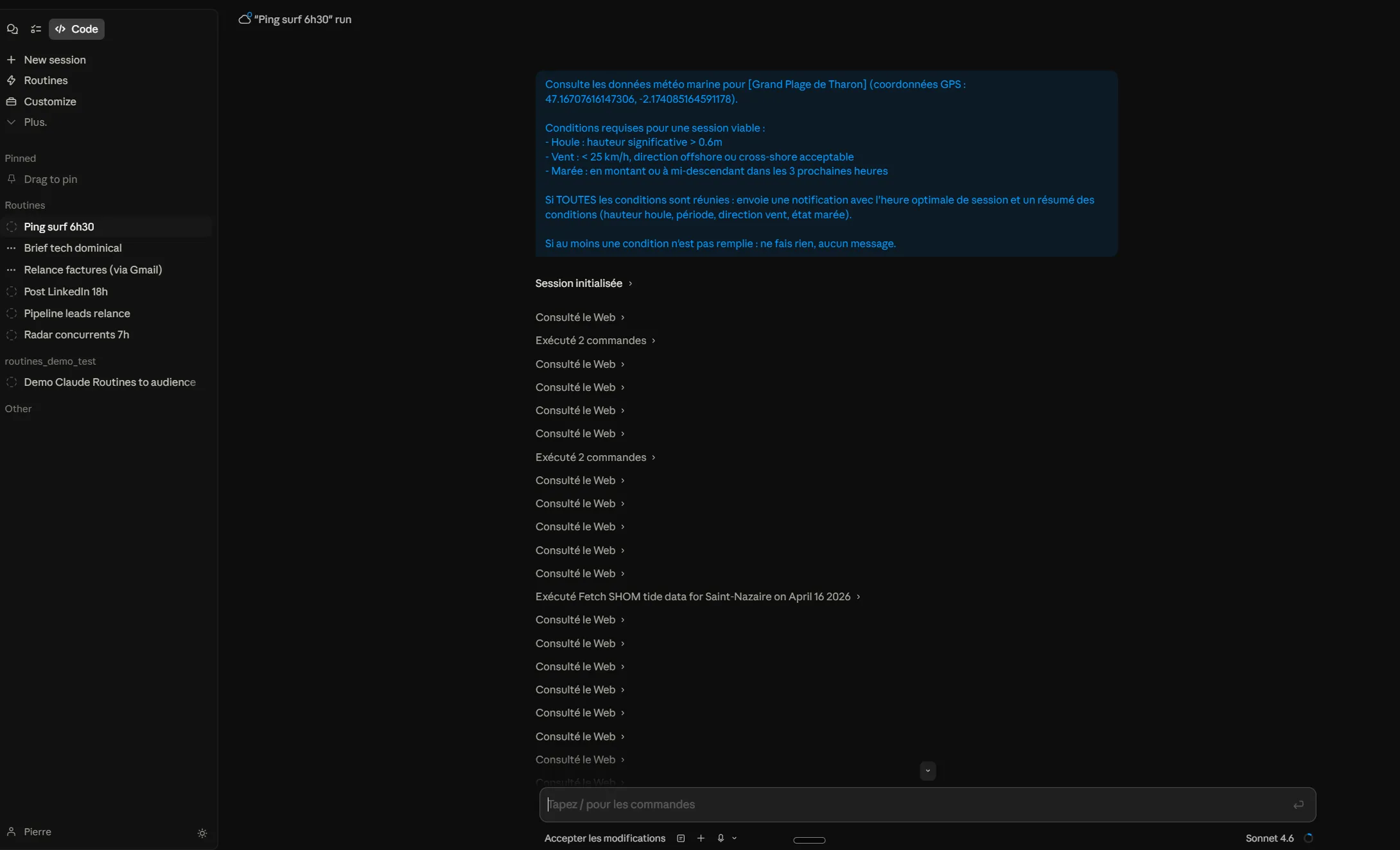
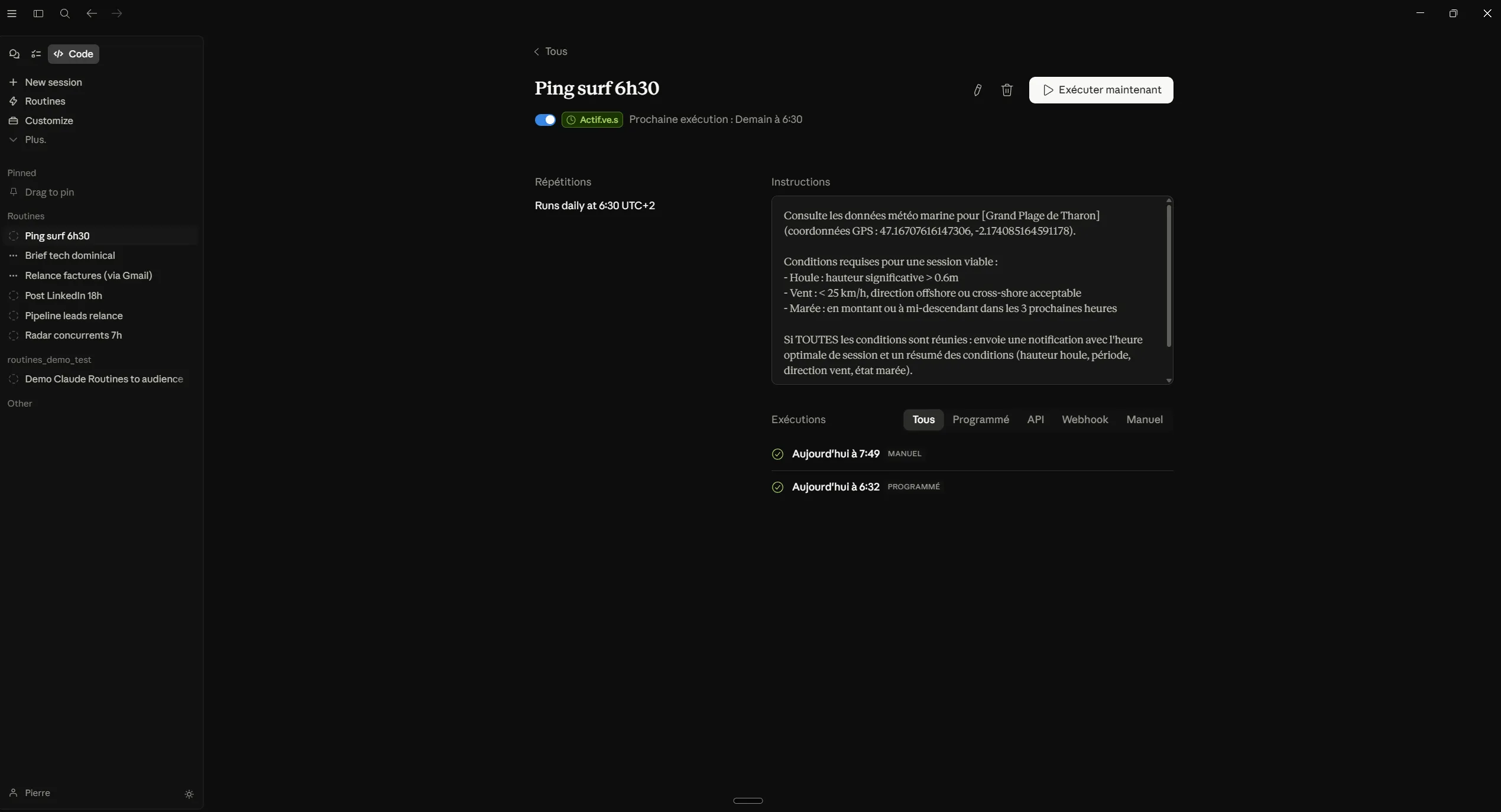
Routine #6 · Surf Ping If Conditions Are Right
Trigger: Scheduled, every morning at 6:30am
Connectors: none (weather API via prompt)
Prompt:
Check marine weather data for [spot-name] (GPS coordinates: XX.XX, -X.XX).

Required conditions for a viable session:
- Swell: significant height > 0.6m
- Wind: < 25 km/h, offshore or acceptable cross-shore direction
- Tide: rising or mid-falling within the next 3 hours

If ALL conditions are met: send a notification with the optimal session
time and a summary of conditions (swell height, period, wind direction,
tide state).

If at least one condition is not met: do nothing, no message.
Result: I never miss a good session anymore. And I no longer check conditions when they're bad.
Setup time: 4 minutes
This Routine isn't productive in the classic sense. But an automation that gives you back personal time is worth as much as one that optimizes your pipeline.
Where to Start
Three practical rules to get started without messing up:
1. Start with a consequence-free Routine. #6 (surf) or #5 (tech brief) are ideal: they read data and drop a report. They don't modify anything, don't send anything. You can verify the result before moving on to Routines that take action (emails, Notion, Stripe).
2. Always test manually before activating. The interface lets you fire a Routine immediately without waiting for the schedule. Do it, check the result, adjust the prompt if needed.
3. Put guardrails in the prompt. All the Routines above include explicit instructions: "do nothing if [condition]", "save as draft, don't send". That's intentional. A Routine running silently can cause damage if the prompt is poorly scoped.
Going further:
- Claude Code hooks are still useful for automations triggered by your own actions in the terminal
- MCP servers are the connectors that give Routines access to your external tools
- Official documentation: code.claude.com/docs/en/routines

Pierre Rondeau
Developer and indie builder. I build products and automations with AI. Creator of Claude Hub.
LinkedIn